Feeder Dashboard gives you a faster way to get through large amounts of news. It’s included with Feeder Plus and Professional.
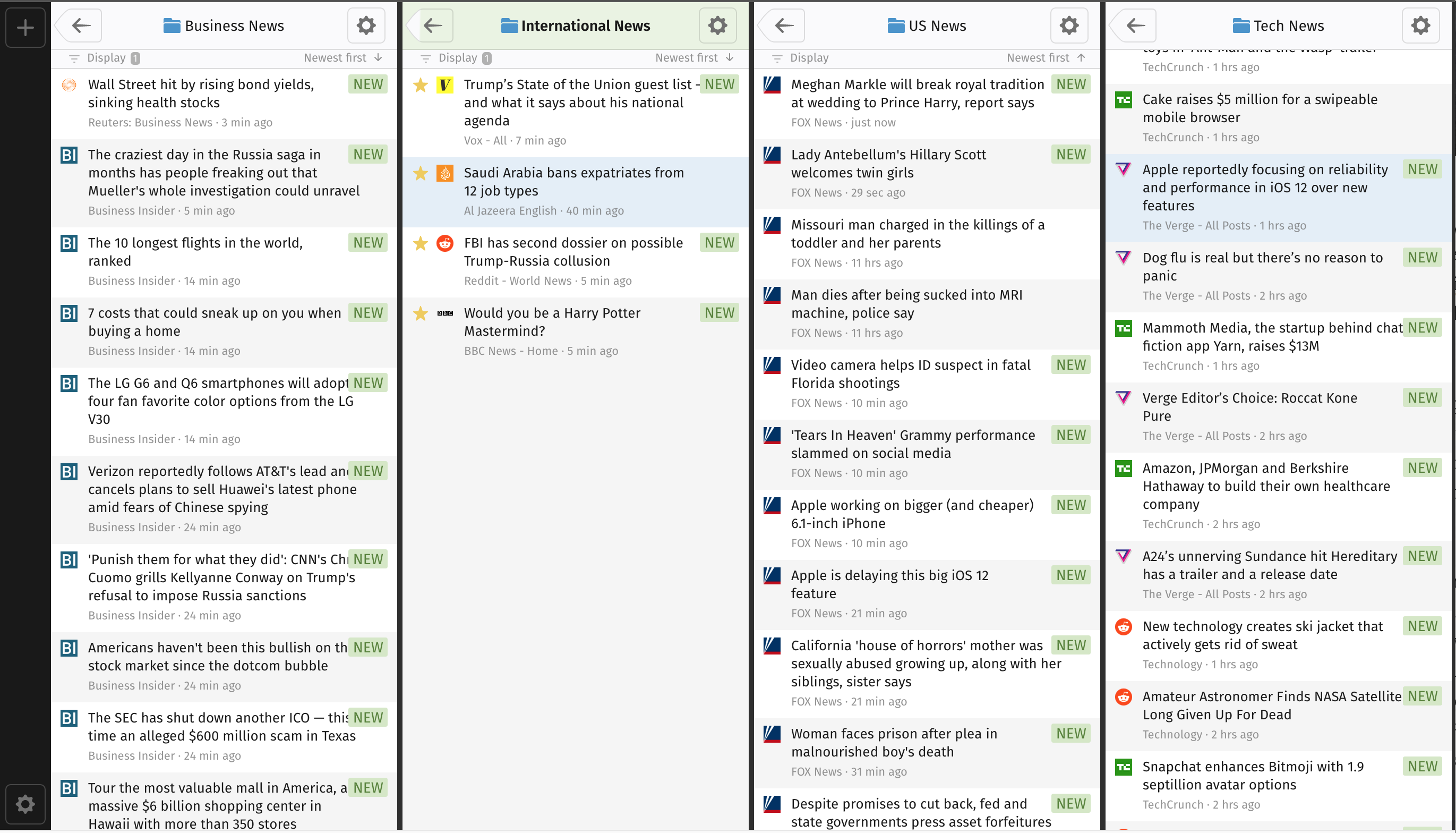
Feeder Dashboard is a tool that allows you to visualize a lot of news at once. It transforms a browser window into a wall of incoming data. For example, stock traders can have a screen with the Feeder Dashboard open to follow news globally. News agencies can have an operator monitoring a large number of news sources.
Dashboard gives you a dedicated page where you can set up a set of “decks”, each containing the familiar Feeder reading view. Each deck is independent from another. The feed or folder you navigate into is saved across reloads. The same goes for any display settings you’ve chosen. For example, you can choose to see all feeds within a folder. To filter even further, you can choose to only see starred posts. In another deck you can open the same folder and show all posts.
Opening your Dashboard
Dashboard is included with Feeder Plus and Professional. Open it anytime at https://feeder.co/dashboard.
Adding Decks
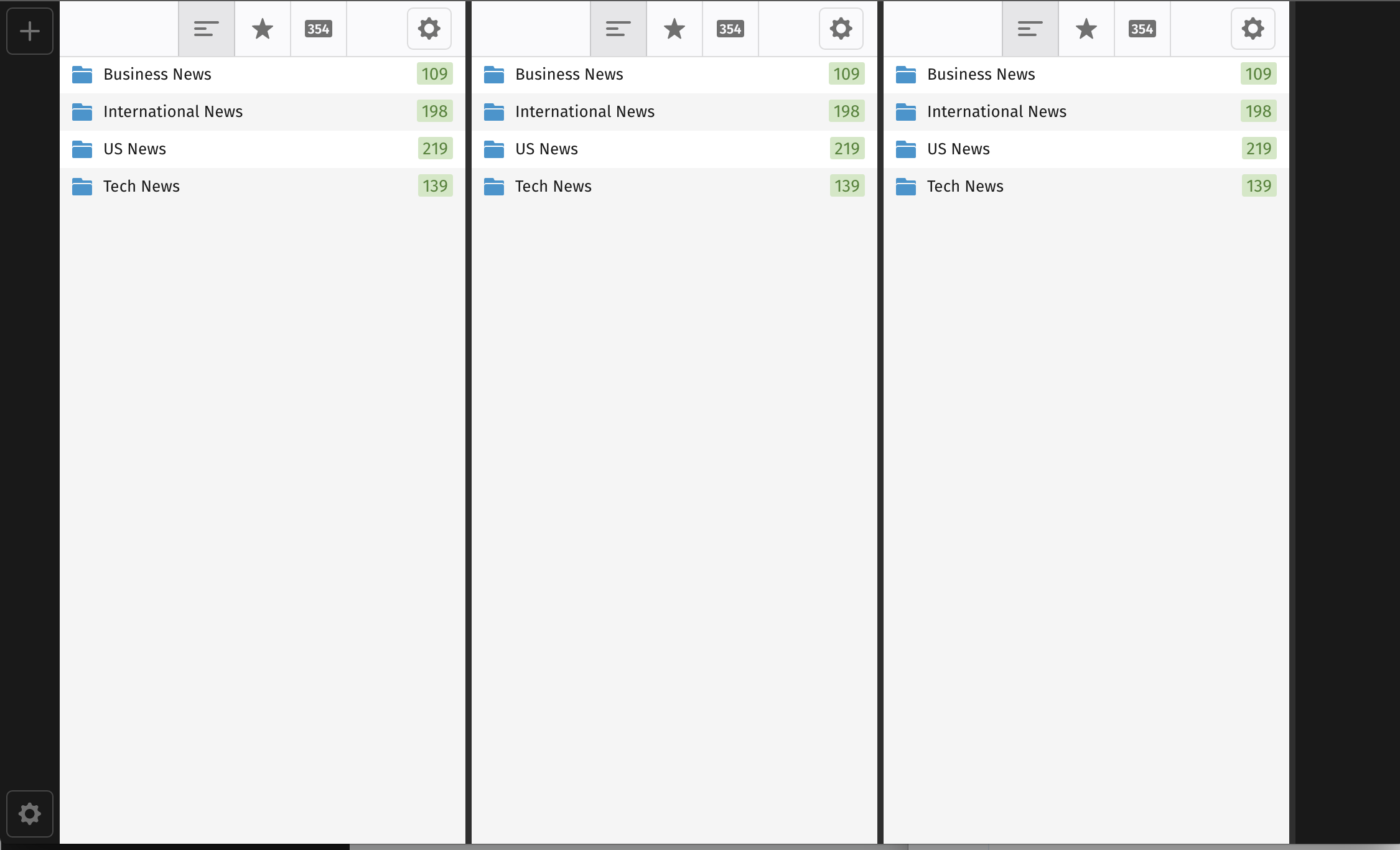
To add a deck simply press the + button in the sidebar navigation menu. Initially a deck will inherit your global settings for sort order and display filters. To customize you simply change the filter settings as you normally would. Everything is saved instantly.
Removing Decks
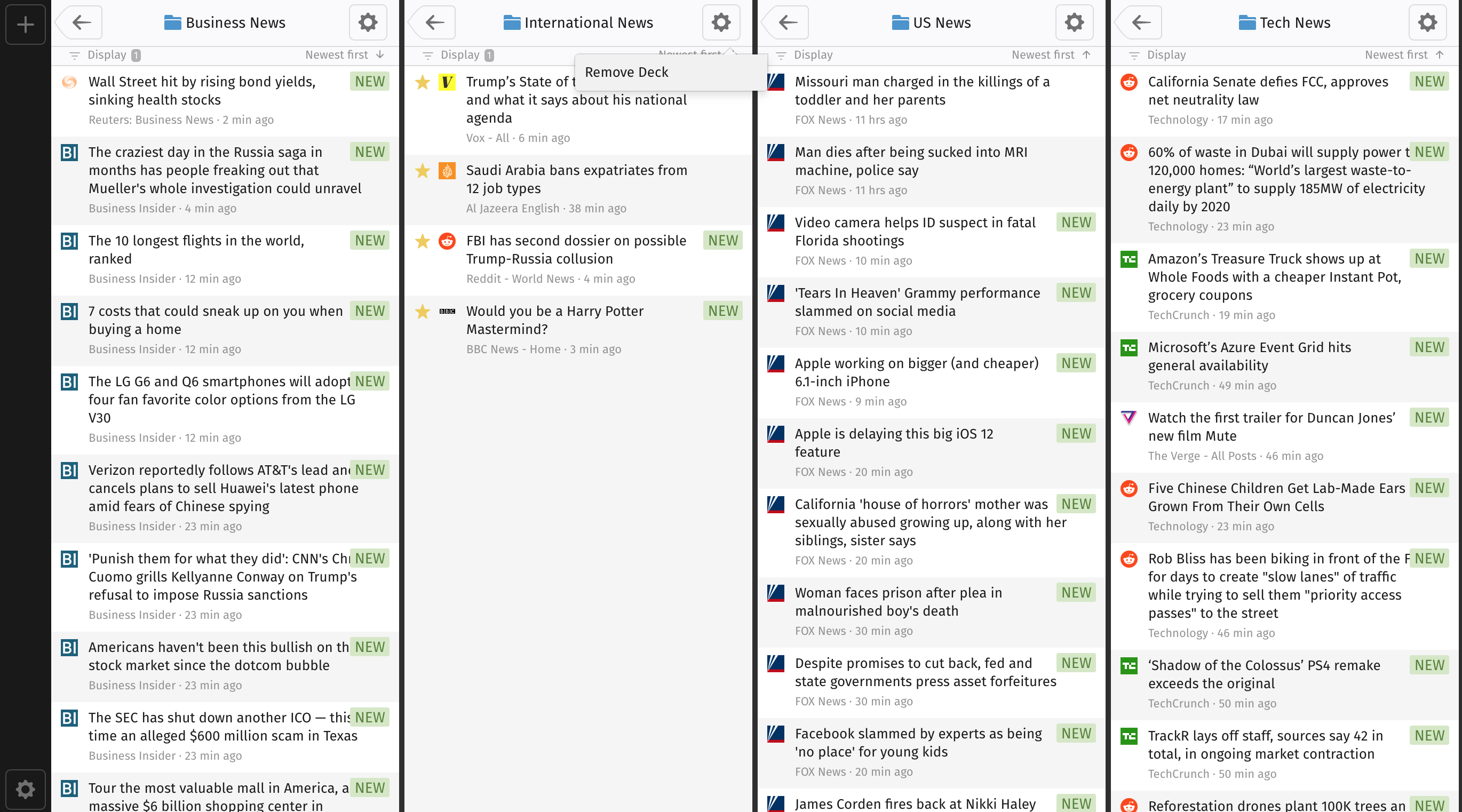
To remove a deck, press the Settings button on the top right corner of the deck you wish to remove.
Configuring Decks
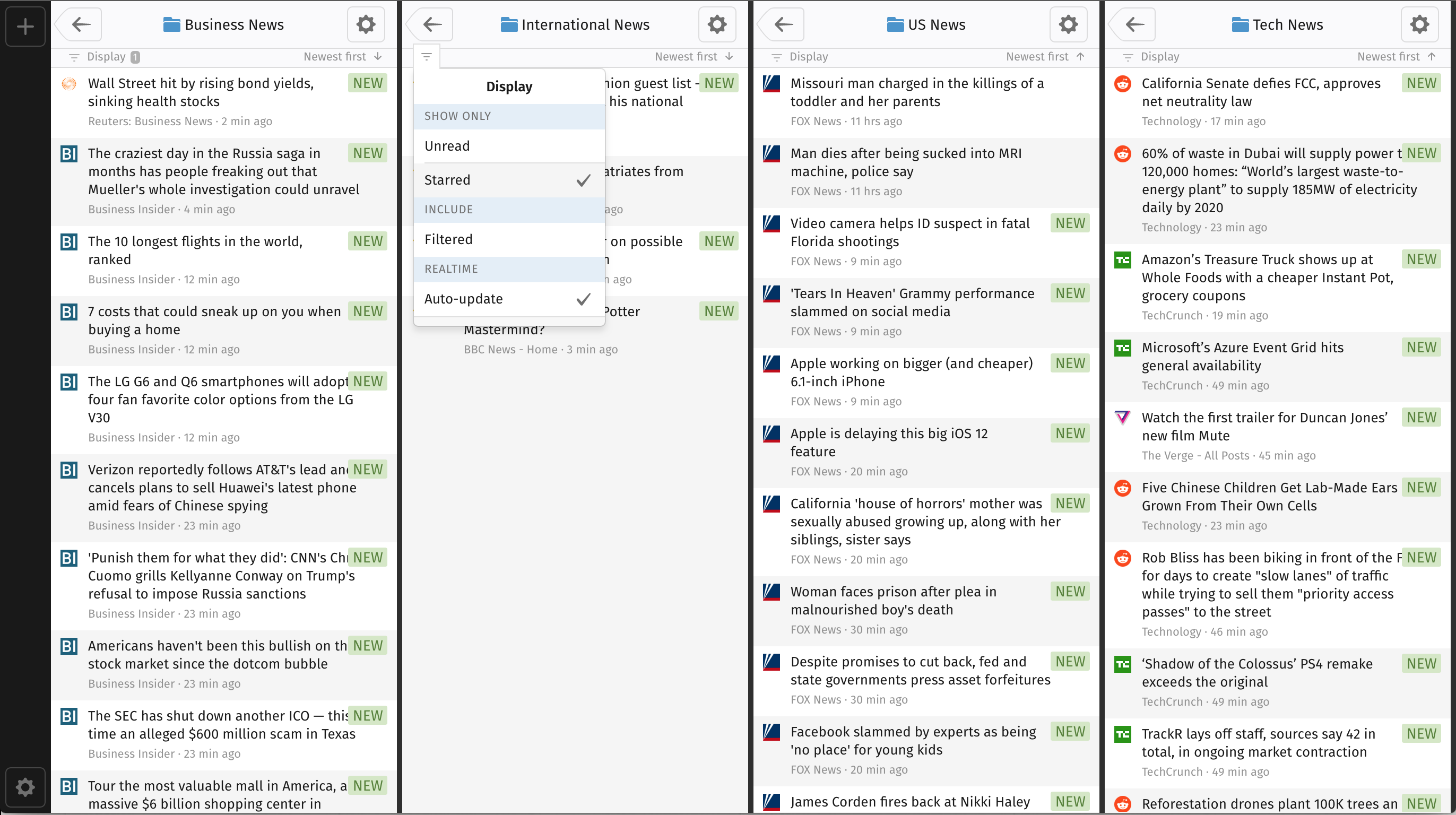
Each deck will store its own settings for things like sort order, which filters to use when displaying the post list (starred/unread/filtered) and which page it’s on. To start from a clean slate of settings, remove the deck and create a new one. The settings will default to your regular global defaults.
Navigation
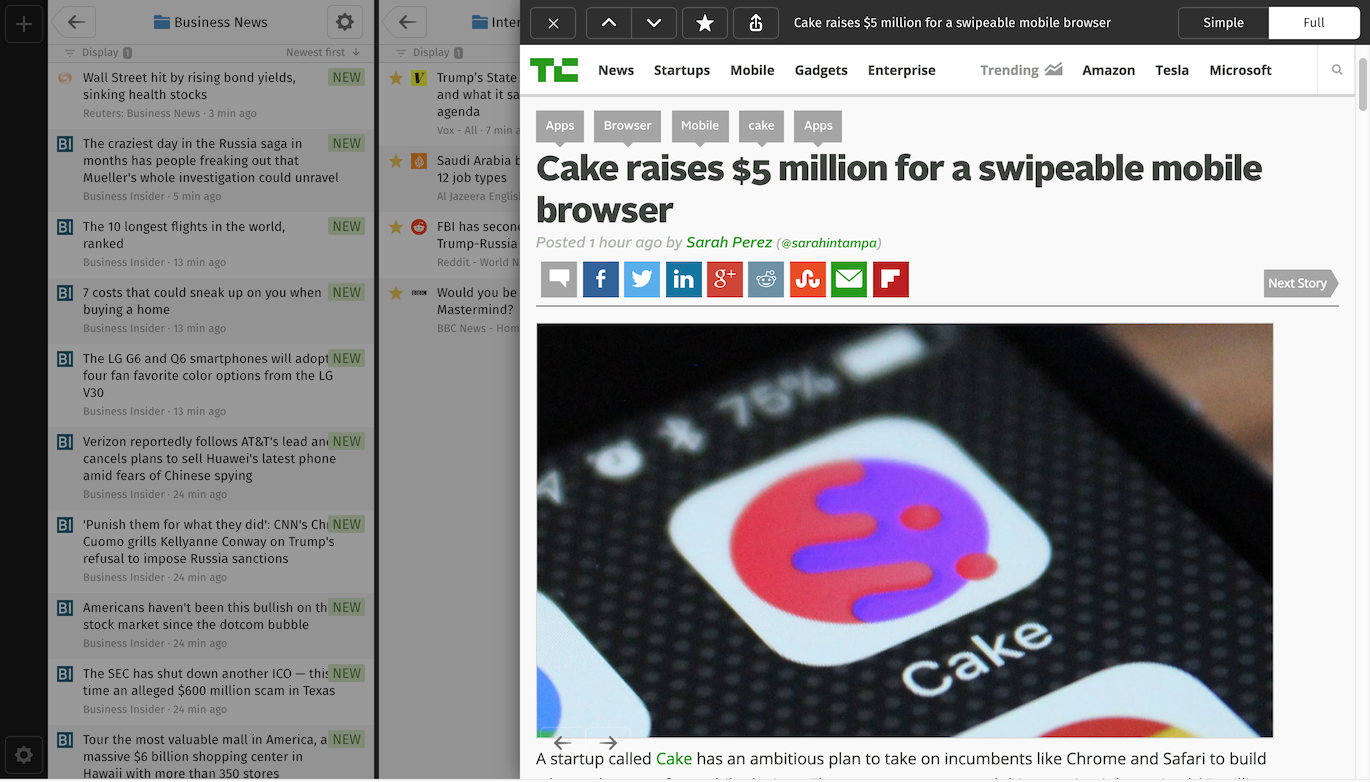
To maximize the available screen space the post sidebar is not visible by default. When you click on a post the contents is loaded on top of all other content. The up/down navigation arrows still work, starring the post and sharing still work as normally.
Keyboard Navigation
Where speed is important, keyboard shortcuts are great to keep things efficient. The standard keyboard shortcuts are supported by the Feeder Dashboard. Up/down to navigate (J/K as well) the post or feed list. Hit “Enter” (L also) to click on the item that is currently highlighted. To close the attached post window press “Escape”. “Backspace” (or H) also works to navigate out from a feed/folder back in the hierarchy.
To star the currently highlighted post you can press S or M. To toggle the read status on a post, press N or R.
To navigate between decks you can use the left and right arrows on your keyboard. The active deck will get a green status bar to highlight this.
Feedback
We’re always working to make Feeder better. You can get in touch with us by either sending an e-mail to support@feeder.co or opening a chat window by pressing the icon in the bottom right corner of the screen at any time.