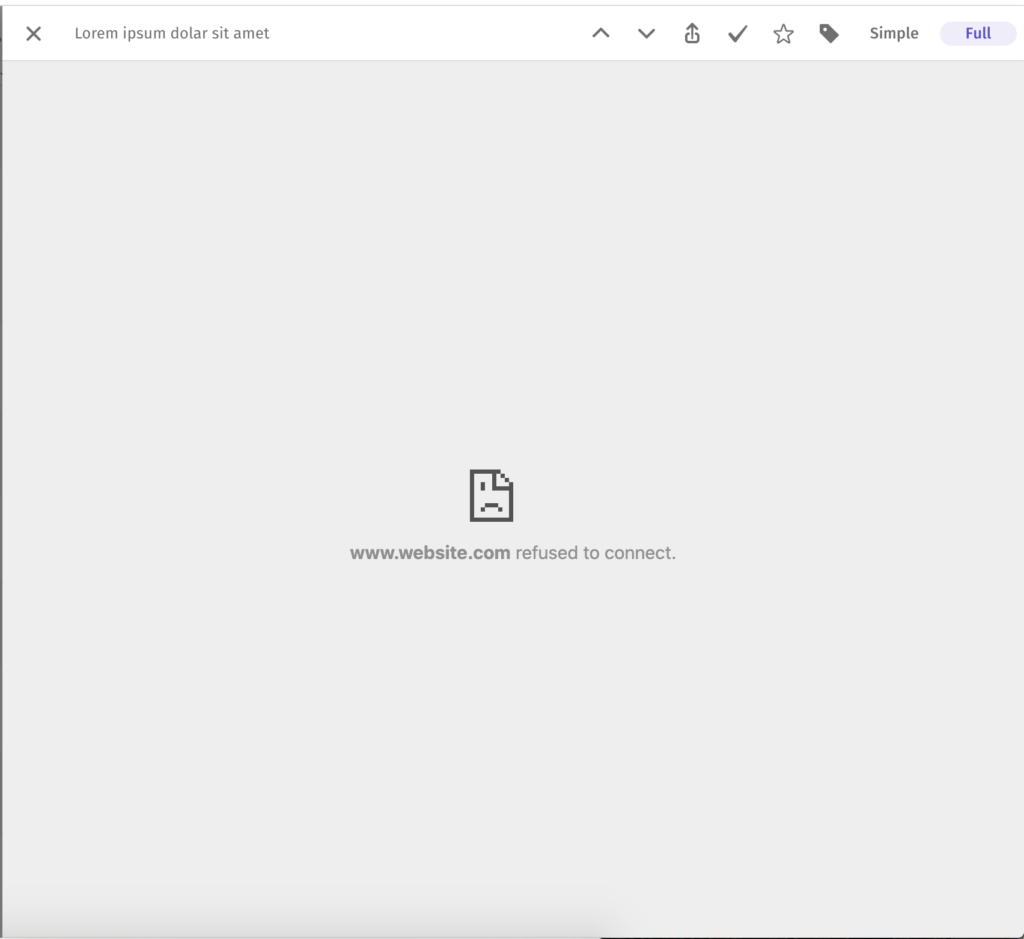
"Refused to connect" means the website doesn't let other sites show its pages, so Feeder can't load it in Full view. Switch to Simple, open posts in a new tab, or install the Feeder browser extension.
Why does this happen?
Above an open post in the web app, Full loads the page from the website inside Feeder. Many sites don't allow this, and your browser then shows "refused to connect". Nothing is wrong with your account or the feed.
How do I fix it?
- Switch to Simple. Click Simple above the post, or press F. Simple shows the post as the feed sends it. If the feed only sends a summary, you see only the summary.
- Open posts in a new tab. Open the View menu above your posts and pick New tab under Open posts. Opening a post then also opens the website in a new browser tab.
- Install the browser extension. With the Feeder extension for Chrome, Firefox or Microsoft Edge installed, the web app can show these sites in Full again. See Feeder apps for iPhone, Android and your browser.
Still stuck? E-mail support@feeder.co with the address of the site.